 Scientify
Setting up your environment this way avoids most errors on this page.
| Practice | What happens if you skip it |
|---|---|
| Create a dedicated conda-forge environment and install GDAL, PROJ, rasterio and geopandas in one go. | Installing in several rounds from different sources leaves the binding, libgdal and proj.db from different installations, causing DLL load failed and proj.db version errors. |
| In that environment install geospatial packages only with conda, never topping up with pip. | pip brings in a second pyproj or GDAL, and which one loads becomes unpredictable, so errors come and go. |
| Do not set PROJ_LIB or PROJ_DATA by hand, and keep QGIS and PostGIS folders off PATH. | Programs then read the older proj.db and DLLs bundled with that software, causing unrecognized format errors. |
| On Windows, do not build GDAL from source with pip. | Windows has no gdal-config, so the build gets stuck on missing headers. |
Troubleshooting by error message
Find your exact error message. Each entry gives the cause, the fix, and what may come up after the fix.
Could not find gdal-config. Make sure you have installed the GDAL native library and development headers. (Also FileNotFoundError: [Errno 2] No such file or directory: 'gdal-config')
Cause: The system has no GDAL library or gdal-config, so pip cannot build the binding from source.
Fix: Install the system GDAL library and headers, then a binding of the same version; it is simpler to install both from conda-forge in a new environment.
What may come next: Whenever either side is upgraded later, the binding and library can drift apart and you get the gdal.h mismatch error below.
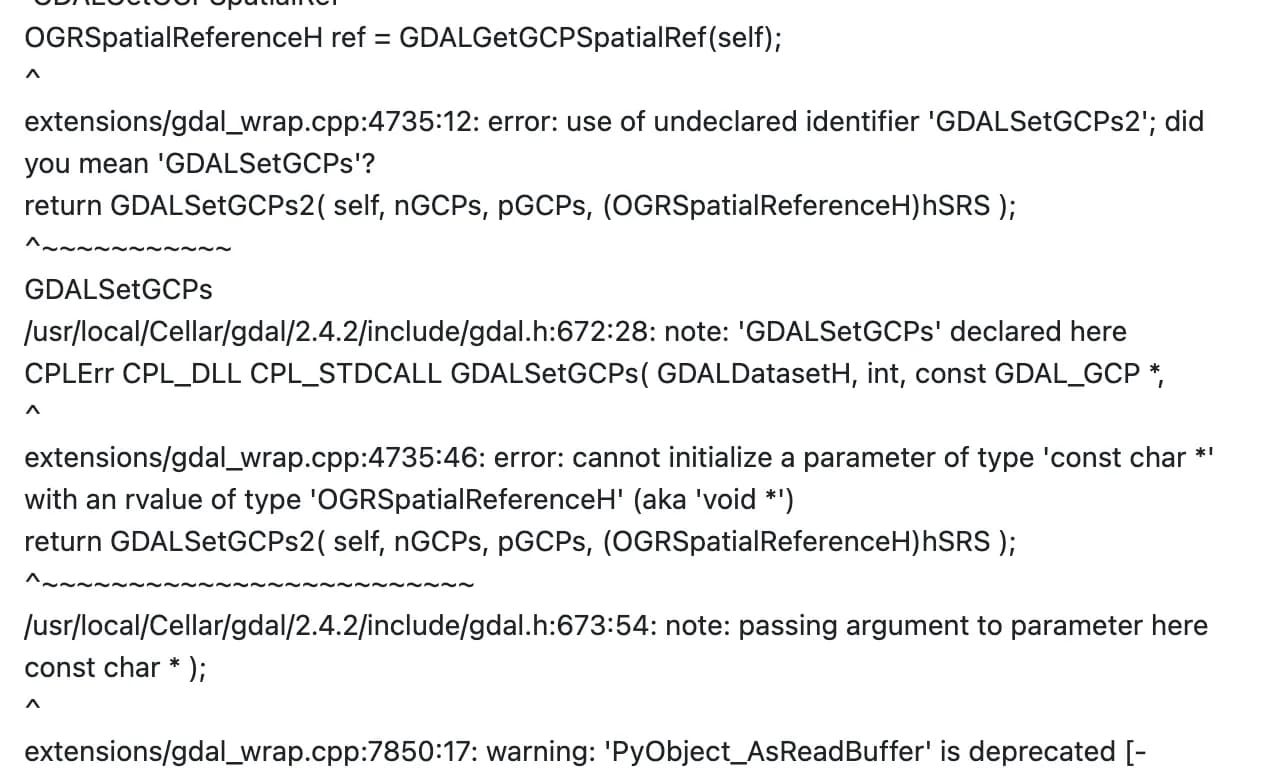
While compiling the GDAL binding, the log shows gdal.h errors that do not match the system library
Cause: The binding pip downloaded has a different version from the system libgdal, so the interfaces do not match at build time.
Fix: Pin the binding to the system libgdal version, for example pip install gdal==2.4.2 if the system has 2.4.2.
What may come next: With an old binding pinned, newer rasterio or geopandas may require a newer GDAL and conflict again.
fatal error C1083: Cannot open include file: 'cpl_port.h': No such file or directory
Cause: Windows has no gdal-config, so a pip source build cannot find the GDAL headers.
Fix: Do not build from source on Windows; install GDAL from conda-forge or OSGeo4W instead.
What may come next: If QGIS or OSGeo4W is already installed, several sets of GDAL DLLs can interfere and imports fail with DLL load failed.
A GDAL API version must be specified.
Cause: A new Fiona release has no Windows wheel, so pip falls back to a source build that cannot find the GDAL version.
Fix: Pin an earlier Fiona release that has a Windows wheel, or install fiona and geopandas from conda-forge.
What may come next: After downgrading Fiona, a newer geopandas may require a newer Fiona and pip reports a dependency conflict.
ImportError: cannot import name '_gdal_array' from 'osgeo'
Cause: pip reused an old build from its cache, or numpy was not installed when GDAL was built.
Fix: Install numpy first, then rebuild with pip install --no-cache-dir --force-reinstall gdal.
What may come next: The rebuild compiles against the current system library, so a libgdal version mismatch can show up as a new build error.
ModuleNotFoundError: No module named 'osgeo'
Cause: The GDAL binding is installed in a different Python, so the current interpreter cannot find osgeo.
Fix: Run python -c "import sys; print(sys.executable)" to confirm the interpreter, then reinstall GDAL into it.
What may come next: With GDAL installed in both conda and the system Python, the PROJ database can also be read from the wrong place and proj.db errors follow.
ImportError: DLL load failed while importing _gdal
Cause: On Windows the DLLs that _gdal needs cannot be found, or DLLs from another GDAL installation are loaded.
Fix: Reinstall gdal from conda-forge in a clean environment and remove other GDAL folders from PATH.
What may come next: After removing those folders from PATH, QGIS or other tools that rely on that GDAL may stop starting.
ImportError: DLL load failed while importing _version: The specified procedure could not be found.
Cause: The rasterio conda package is mixed with the dynamic libraries bundled with QGIS.
Fix: Install rasterio in a new environment that uses only conda-forge packages, and remove the QGIS folder from PATH.
What may come next: Importing osgeo.gdal before rasterio hides the error for now, but it tends to return on another machine or after an upgrade.
OSError: Could not find lib geos_c.dll or load any of its variants [].
Cause: geos_c.dll exists, but the Microsoft Visual C++ runtime it depends on is missing.
Fix: Install the Microsoft Visual C++ Redistributable for Visual Studio 2022.
Internal Proj Error: proj_create: no database context specified (with UserWarning: pyproj unable to set database path.)
Cause: PROJ cannot find proj.db, usually because an environment variable points to the wrong folder or the packages come from two installations.
Fix: Activate the environment with conda activate so it sets PROJ_DATA itself, and do not set PROJ_LIB or PROJ_DATA system-wide.
What may come next: A PROJ variable set by hand affects every environment, so another environment may then report a proj.db version error.

proj_create: unrecognized format / unknown name
Cause: The program read proj.db from another PROJ installation, which lacks the version metadata the current PROJ needs.
Fix: Create a new conda environment, install fiona and pyproj only from conda-forge, and clear PROJ variables you set by hand.
What may come next: If PATH still contains a proj.dll from other software, the new environment may load it too, so clean that up as well.
proj.db contains DATABASE.LAYOUT.VERSION.MINOR = 0 whereas a number >= 2 is expected.
Cause: The program loaded the older proj.db bundled with PostgreSQL or PostGIS.
Fix: Set PROJ_DATA (PROJ_LIB before PROJ 9.1) to the share/proj folder that ships with pyproj.
What may come next: After this change, PostGIS and other programs that expect the older proj.db may start failing instead.
rasterio.errors.CRSError: The EPSG code is unknown. PROJ: proj_create_from_database: Cannot find proj.db
Cause: rasterio before 1.2.0 cannot find the PROJ database, or an environment variable points to an older PROJ.
Fix: Upgrade to rasterio 1.2.0 or later and remove any PROJ_LIB or PROJ_DATA variable that points to an older PROJ.
What may come next: Upgrading rasterio also upgrades the GDAL it depends on, which conflicts with environments that pin a GDAL version.
pyproj unable to set database path. (geopandas and pyproj come from conda and pip)
Cause: conda and pip each installed pyproj, so the data folder and the library the program loads do not match.
Fix: Remove pyproj and geopandas from both, then install them together from conda-forge in a new conda environment.
What may come next: Installing another geospatial package with pip later can bring in a second pyproj again and the problem returns.
Scientify is a cloud computer with research software installed and AI agents such as Codex and Claude Code built in. Describe what you need in one sentence, for example "clip these satellite images to the study area, reproject them to EPSG:4326 and compute NDVI", and the agent uses the preinstalled GDAL to do the modeling and computation, with no software to install and no code to write.
Compared with installing more on your own computer, the cloud computer already has GDAL 3.13.3, PROJ 9.9.0, rasterio 1.5.2 and geopandas 1.2.0 matched and ready, and runs continue after you close your laptop.
The cloud computer comes with more computing power: CPU and GPU clusters can be called on demand for large-scale scientific computing. Compute is billed by the minutes you actually use, so nothing is wasted.
- Cloud computer
- 4 vCPU · 8 GB
- Top configuration, for data processing and small to medium jobs
- Callable GPU
- 96 GB VRAM
- Up to an RTX PRO 6000 per GPU; H800 80 GB and up to 8 × A10G also available
- Callable CPU
- 224 cores · 3 TB
- Largest spec, for large parallel computations
References
- PyPI: GDAL — libgdal and its development headers must be installed first; osgeo.gdal_array needs numpy at build time; _gdal_array import failures are usually caused by the cache; pip install gdal[numpy]==$(gdal-config --version).*
- GDAL download page — Windows: conda-forge, OSGeo4W, GISInternals; macOS: Homebrew; Linux: distribution packages
- gdal issue 1762 — The PyPI GDAL package has no wheels; gdal.h compile errors; pip install gdal==2.4.2 to match the system version
- Microsoft Q&A: Install GDAL and GRASS on python web app — Source of the Could not find gdal-config text; the prebuilt wheel workaround
- StackOverflow mirror: python gdal package missing header file when installing via pip in Windows — C1083 error text for cpl_port.h; Windows header path
- Fiona issue 1372 — A GDAL API version must be specified.; Fiona 1.10 pre-releases have no Windows wheel
- Shapely issue 986 — Could not find lib geos_c.dll or load any of its variants; missing runtime library
- OSGeo4W mailing list: ImportError: DLL load failed while importing _gdal — Source of the error title
- Python list: No module named 'osgeo' — ModuleNotFoundError: No module named 'osgeo'; checking C:\Program Files\GDAL for an osgeo package
- What's new in Python 3.8 — os.add_dll_directory; default DLL loading locations for extension modules
- rasterio issue 250 (conda-forge) — DLL load failed while importing _version; QGIS interfering with the conda environment
- rasterio installation documentation — rasterio wheels bundle libgdal and omit some drivers; gdal-config and GDAL_CONFIG
- rasterio FAQ — rasterio.errors.CRSError ... Cannot find proj.db; how to unset PROJ_LIB and PROJ_DATA
- pyproj discussion 1262 — Internal Proj Error: proj_create: no database context specified; UserWarning: pyproj unable to set database path.
- pyproj discussion 1045 — proj.db contains DATABASE.LAYOUT.VERSION.MINOR; proj.db from PostgreSQL and PostGIS
- pyproj issue 999 — conda and pip mixed installs; the maintainer recommends conda-forge in a new environment
- gdal-dev mailing list (June 2021) — proj_create: unrecognized format / unknown name; proj_create_from_database: crs not found; proj.db without version metadata
- cgohlke/geospatial-wheels — Unofficial Windows wheels, GDAL 3.13.3; provided as is with no warranty; need the Visual C++ 2022 runtime