 Scientify
Setting up your environment this way avoids most errors on this page.
| Practice | What happens if you skip it |
|---|---|
| On Windows, install WSL2 first and put conda in your WSL2 home folder (~). | With conda under a Windows drive such as /mnt/c, installation fails with CaseInsensitiveFileSystemError. |
| Give AmberTools its own conda environment instead of sharing one with other software. | The low-level libraries AmberTools pins conflict with CUDA, FFmpeg, pyvista and others, and conda cannot solve. |
| Use the prebuilt conda-forge package rather than building from source. | A source build needs a working Fortran compiler and BLAS and often stalls on CMake or link errors. |
| Install acpype from GitHub. | The older PyPI acpype does not match AmberTools and fails with missing-file errors when building topologies. |
Troubleshooting by error message
Find your exact error message. Each entry gives the cause, the fix, and what may come up after the fix.
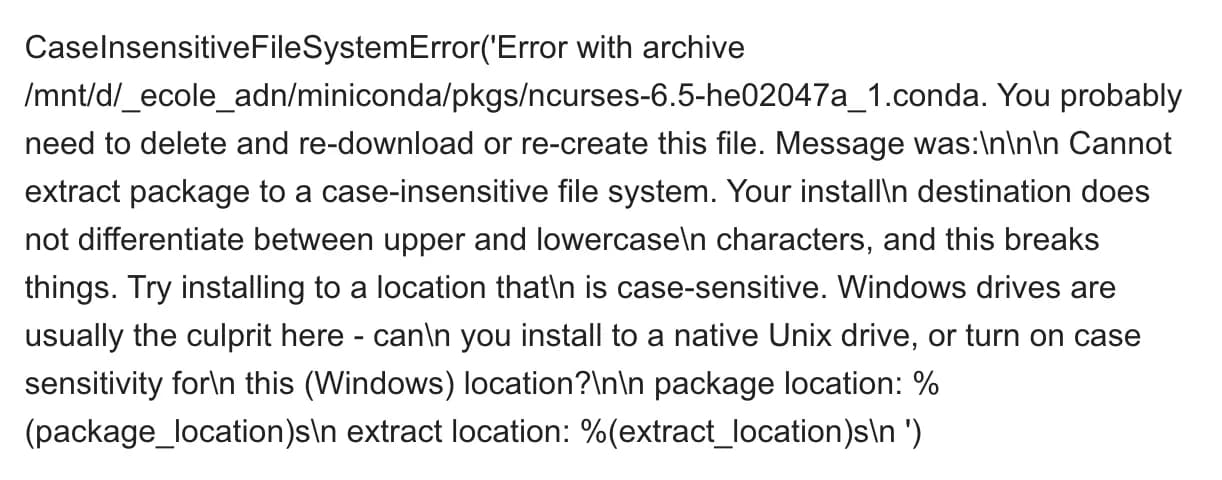
CaseInsensitiveFileSystemError, with Cannot extract package to a case-insensitive file system. in the message
Cause: conda is installed under a Windows drive such as /mnt/c or /mnt/d, where file names are not case-sensitive.
Fix: Uninstall conda and reinstall it in your WSL2 home folder (~), then check that which conda prints a path starting with /home.
What may come next: After reinstalling conda you must reinstall every package, and other software may then conflict with AmberTools.
PackagesNotFoundError: The following packages are missing from the target environment: - cudatoolkit=12.2
Cause: While solving, conda finds that ambertools and cudatoolkit require conflicting versions.
Fix: Create a separate conda environment for AmberTools instead of installing it next to CUDA packages.
What may come next: AmberTools also pins low-level libraries such as ICU and boost that conflict with common packages like FFmpeg and pyvista, so the more you add to one environment, the more errors you get.
Cannot open the input file (EPE.mol2).
Cause: The input file antechamber expects does not exist because the previous conversion did not create it.
Fix: Convert the PDB to mol2 with antechamber first, confirm the file exists, then run acpype.
ERROR: Antechamber failed
Cause: One of antechamber's steps failed; this line is only the summary.
Fix: Scroll up to the first ERROR line and fix that one.
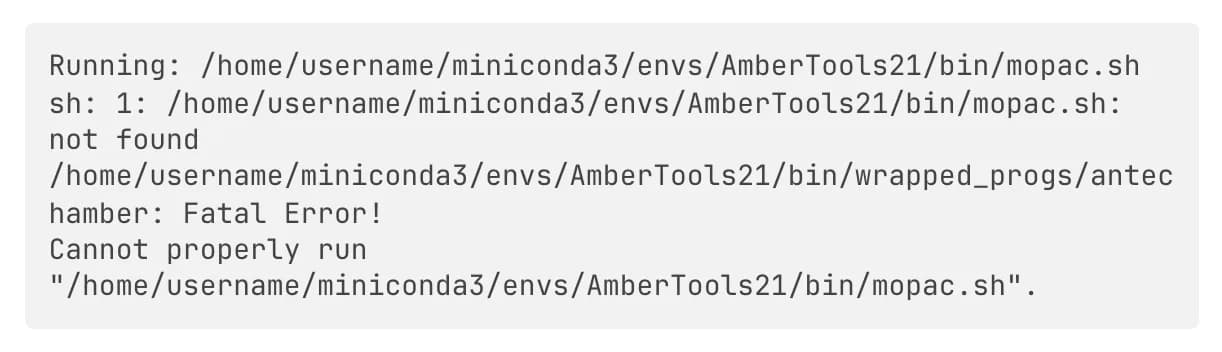
/home/username/miniconda3/envs/AmberTools21/bin/wrapped_progs/antechamber: Fatal Error!
Cause: The quantum chemistry program antechamber calls cannot run, usually because acpype does not match AmberTools.
Fix: Uninstall the current acpype and install the latest acpype from GitHub.
What may come next: A newer acpype may require a newer AmberTools, so an old environment may need both upgraded.
ACPYPE FAILED: [Errno 2] No such file or directory: 'EPE_AC.prmtop'
Cause: acpype came from PyPI, or the antechamber step before it failed.
Fix: Uninstall the PyPI version, install acpype from GitHub, and check the antechamber output.
What may come next: Installing from GitHub brings new Python dependencies that may conflict with packages already in the environment.
ERROR: no 'babel' executable; you need it if input is PDB
Cause: The input is a PDB file but there is no babel command on the system.
Fix: Install Open Babel and create a symlink named babel that points to obabel.
What may come next: The Open Babel conda package brings its own dependencies, which may conflict when installed into the AmberTools environment.
ERROR: convert pdb to mol2 via babel failed
Cause: babel failed to convert the file, often because the current folder is not writable.
Fix: Check write permission in the current folder, or convert the PDB to mol2 with antechamber instead.
Could not find bond parameter for atom types: O - Mg2+
Cause: The force field has no bond parameter between Mg2+ and oxygen.
Fix: Parameterize the metal site separately, following the AMBER tutorial on metal ions.
Could not find type: HY
Cause: The force field does not have this atom type.
Fix: Use a suitable existing type; if you really need a new one, define it in a frcmod file with all its parameters.
Unknown keyword: HCR -CR10- in parameter file.
Cause: An atom type in the parameter file is longer than two characters, or an angle line is malformed.
Fix: Shorten atom types to two characters and write angle lines as xx-yy-zz force-constant equilibrium-angle.
*** Proper torsion parameters missing ***
Cause: A dihedral involving a new atom type has no parameters.
Fix: Add a placeholder with zero energy and multiplicity 3, without changing existing parameters.
Missing bond parameter: SH-SH (atoms 52- 566)
Cause: Two cysteines form a disulfide bond but the residues are still named CYS.
Fix: Rename the bonded CYS residues to CYX and connect them with the bond command in tleap.
Missing mass parameter: Atom number 12 type LP
Cause: The prep database does not match the force field version.
Fix: Use the database file that belongs to the force field, for example db94.dat with parm94.dat.
Parameter file was not saved.
Cause: Earlier missing-parameter errors stopped the topology file from being written.
Fix: Fix the earlier Could not find errors first, then run again.
No CMAKE_Fortran_COMPILER could be found.
Cause: When building AmberTools from source, CMake cannot find a Fortran compiler.
Fix: Install gfortran and pass its path to cmake with -DCMAKE_Fortran_COMPILER.
What may come next: Once the compiler is found, BLAS or LAPACK errors often follow and need math libraries installed too.
undefined reference to `sgemm_`
Cause: The Fortran program cannot find BLAS functions at link time because BLAS is not linked.
Fix: Make sure BLAS, LAPACK and the compiler come from the same installation, then rerun cmake.
What may come next: Switching to a different BLAS can break other programs that were built against the old one.
Scientify is a cloud computer with research software installed and AI agents such as Codex and Claude Code built in. Describe what you need in one sentence, for example "parameterize this ligand with GAFF2 and produce a topology GROMACS can use", and the agent uses the preinstalled AmberTools to do the modeling and computation, with no software to install and no code to write.
Compared with installing more on your own computer, the cloud computer already has AmberTools 26.0 installed apart from other software's dependencies, ready to use, and runs continue after you close your laptop.
The cloud computer comes with more computing power: CPU and GPU clusters can be called on demand for large-scale scientific computing. Compute is billed by the minutes you actually use, so nothing is wasted.
- Cloud computer
- 4 vCPU · 8 GB
- Top configuration, for data processing and small to medium jobs
- Callable GPU
- 96 GB VRAM
- Up to an RTX PRO 6000 per GPU; H800 80 GB and up to 8 × A10G also available
- Callable CPU
- 224 cores · 3 TB
- Largest spec, for large parallel computations
References
- Amber: Windows and WSL installation notes — Amber should be compiled and run under WSL/WSL2. The conda package in WSL2 is marked as not yet tested; the page is dated December 2021
- AutoSolvate installation guide — AmberTools cannot be installed from conda. On Windows it must be installed separately
- qiime2 forum: CaseInsensitiveFileSystemError in conda under WSL — Verbatim error text, and the fix of reinstalling conda under ~
- condacolab issue #61 — Verbatim PackagesNotFoundError pointing to cudatoolkit=12.2
- BioExcel forum: installing and running ACPYPE on Linux — Verbatim babel, antechamber and ACPYPE FAILED errors, and the fixes
- AMBER: leap common errors — Explanations of Could not find type, Unknown keyword and *** Proper torsion parameters missing ***
- AMBER: parameter questions — Explanations of Missing bond parameter and Missing mass parameter, and the CYX residue
- BioExcel forum: parameter errors in MD setup — Verbatim Could not find bond parameter for atom types: O - Mg2+ and the reply
- AMBER: AmberTools overview — Components of AmberTools and its free license
- AMBER: getting Amber — Amber has a separate license, with no fee for non-commercial use. The conda package is a precompiled binary
- fortran-lang/stdlib issue #328 — Verbatim No CMAKE_Fortran_COMPILER could be found. From another project
- HPC community forum: CMake build problem — Verbatim undefined reference to `sgemm_`. From another project